When we run an AI training cohort for library workers, the moment that changes how people think about this technology is almost always the same: they type one plain sentence, and a few seconds later a finished, usable image appears. Not a stock photo. Not a template. The thing they described.
PLAID3 Studio is the tool we built for that moment. It is a collaborative AI image generator — make a brand-new image from text, or take any existing image and describe how to change it — designed to be learned in a room full of people who have never touched an AI image tool before.
Two ways to make an image
Studio gives every learner two paths to a picture, and most cohorts use both within their first session.
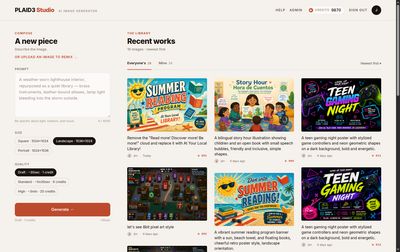
Generate from text. Type a prompt — up to 4,000 characters, with a live character counter — and Studio creates a brand-new image from your description. This is the classic "type a sentence, get a picture" experience, and it is where most people start.
Remix an existing image. Pick any image — one from the shared gallery, or one of your own — and describe the change you want. Add a bike rack to a photo of your library entrance, restyle a flyer for a different season, or swap the colors on a poster. Studio shows a thumbnail and a clearable "Source" chip while you compose, so you always know which image you are editing.
When uploads are turned on for your cohort, you can also remix your own photo or drawing — bring in a picture of your actual building, display wall, or event space and have Studio reimagine it. PNG, JPEG, WebP, GIF, AVIF, and HEIC/HEIF files all work as a starting point.
Pick the size and quality that fit the job
A flyer, a social post, and a wayfinding sign are not the same shape, so Studio lets you choose:
- Square (1024×1024) — social posts and icons
- Landscape (1536×1024) — banners and slides
- Portrait (1024×1536) — flyers and signage
Quality is a deliberate trade-off between speed, polish, and cost — and Studio makes that trade-off visible rather than hiding it:
Draft quality — quick ideas and rough drafts
Standard quality — most everyday work
High quality — the version you will print or post
This is one of our favorite teaching moments. Learners quickly figure out a real workflow: iterate on Draft until the idea is right, then spend a little more for a High-quality final. It is a low-stakes way to learn that AI work is iterative.
Credits make the cost real — without real risk
Every learner has a credit balance, shown right in the header, and each generation has a price based on its quality. Tiers you cannot afford are simply disabled, so nobody hits a confusing error — the choices you can make are the only choices you see.
Click the balance to open your credit activity drawer: a plain-language history of everything you have made, with the reason (new image, edit, refund, a grant from your instructor), the credit change, and a running balance. It demystifies "what does this cost" in a way an abstract explanation never does.
A shared gallery you learn from
Studio is collaborative on purpose. The library — the shared gallery — has two tabs:
- Everyone's — every image the cohort has made, newest first
- Mine — just your own work
New images appear in real time, with no refresh, laid out in a masonry grid that shows each image's prompt, who made it, and when. In a live cohort this is electric: someone makes something clever, it pops into everyone's gallery, and three other people immediately want to know how. Because every card shows the prompt that made it, they can find out — and then remix it themselves.
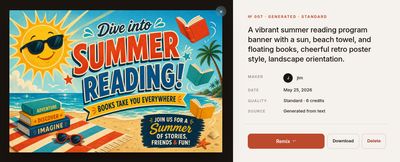
Click any image to open a full-size view with its full prompt, maker, date, quality, and credit cost. From there you can remix it (it loads straight into the composer as your source), download the full-size file to actually use, or delete it if it is yours.
A built-in cheat sheet — including 50 ready-made prompts
Good prompting is a skill, and Studio ships with a one-page help sheet built to teach it. It is printable — we hand it out in workshops — and it covers the two ways to make an image, how quality trades off against time and credits, and which shape to pick for which job.
The part learners love most is the prompt library: 50 ready-to-use prompts across five categories libraries actually need — events and flyers, seasonal and holiday, signage and wayfinding, social media, and displays and decor. Each one has a one-click copy button, so a brand-new user can produce something genuinely useful in their first minute, then start adjusting from a working example instead of a blank box.
Why we built it for cohorts
There are plenty of AI image tools. We built Studio because the others were not designed to be learned together — with a shared gallery where prompts are visible, a credit system that makes cost concrete and mistakes free, and a cheat sheet that meets a first-time user exactly where they are.
If you would like to see Studio in a training cohort for your library or system, get started with us — and in the meantime, the tool itself lives at studio.plaid3.com.